 English
  简体中文
简体中文  한국어
한국어  Deutsch







Yes, Arbin MITS software provides several tools to help you during schedule writing. You can import content from other schedules, and you can also duplicate content within a schedule itself. In MITS 10, a sub-schedule option is also available. We’ll walk through each of these.
Importing content from another schedule:
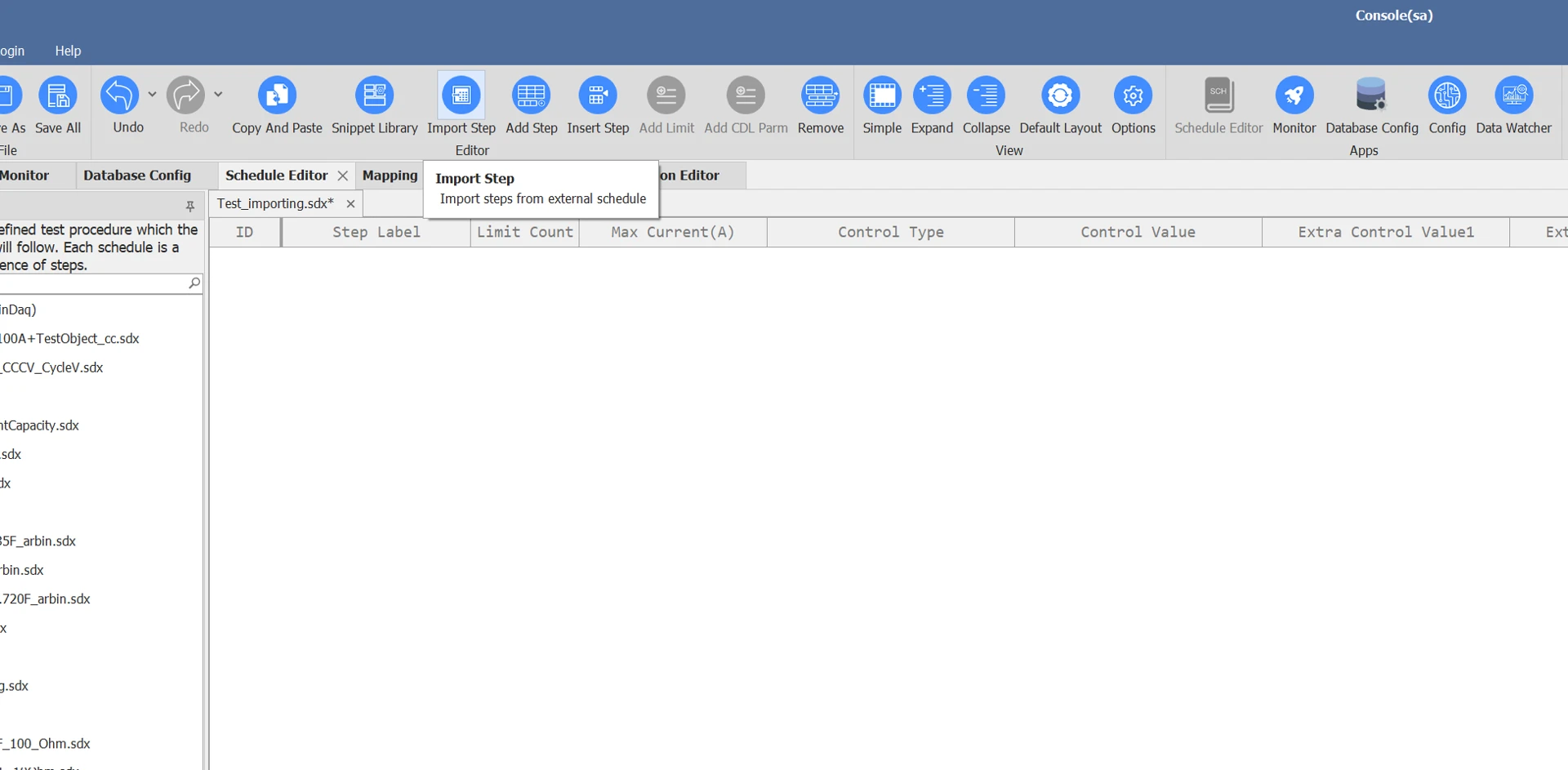
a. Click the “Import Step” button on the menu bar of the schedule file.
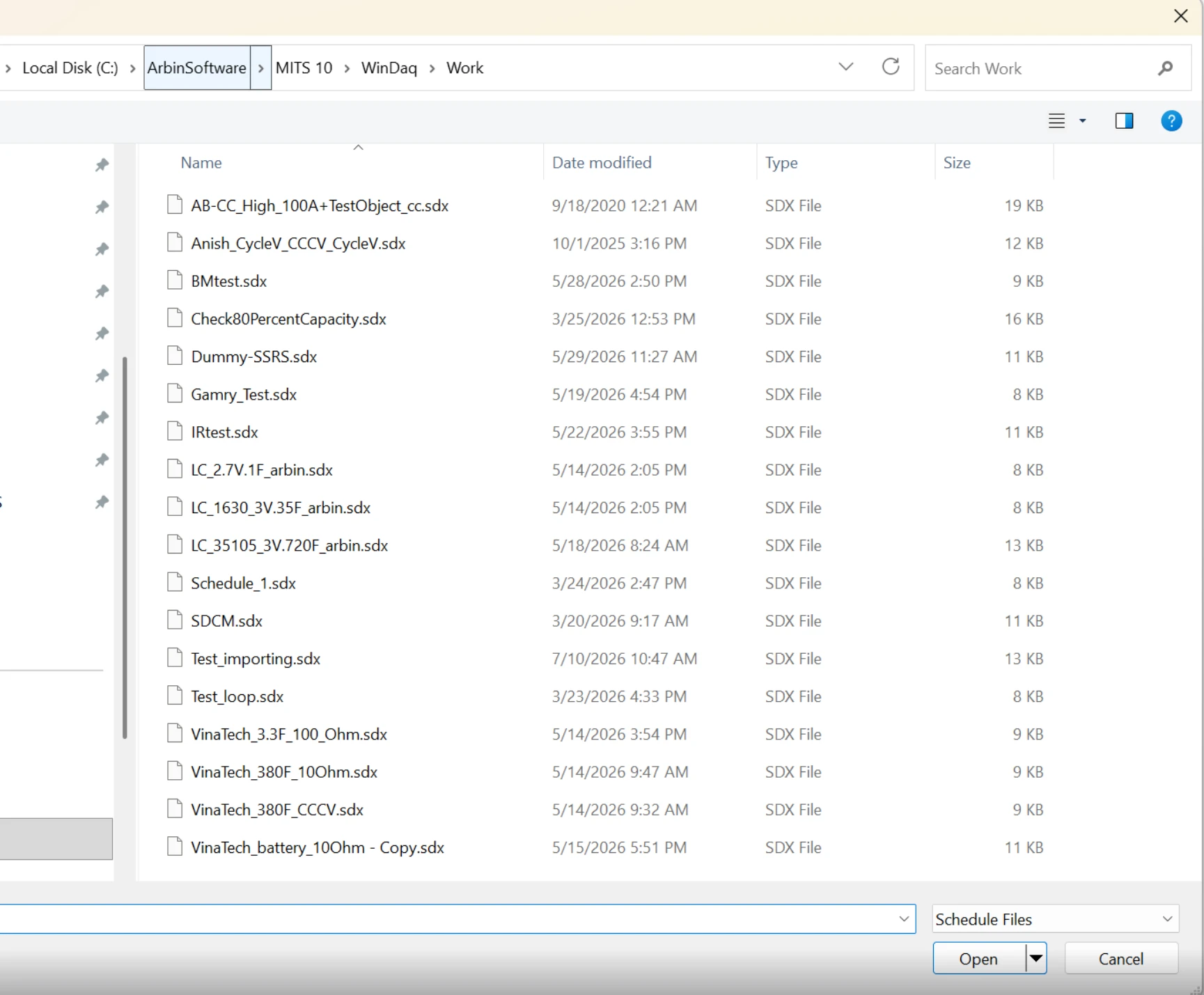
b. Choose the schedule you want to import content from.
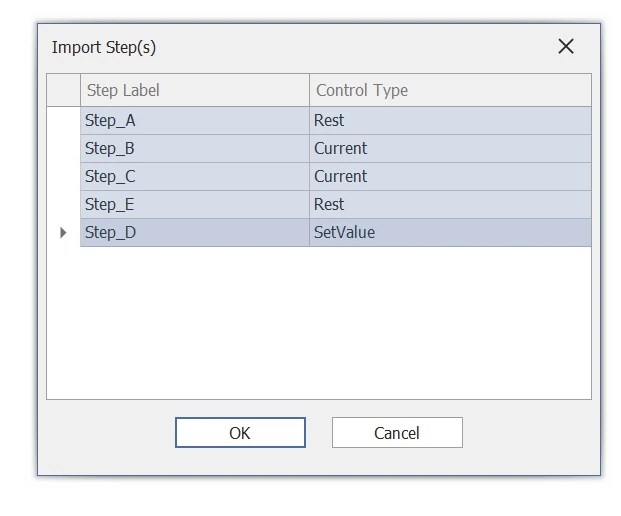
c. A list of steps in the schedule loads and is displayed:
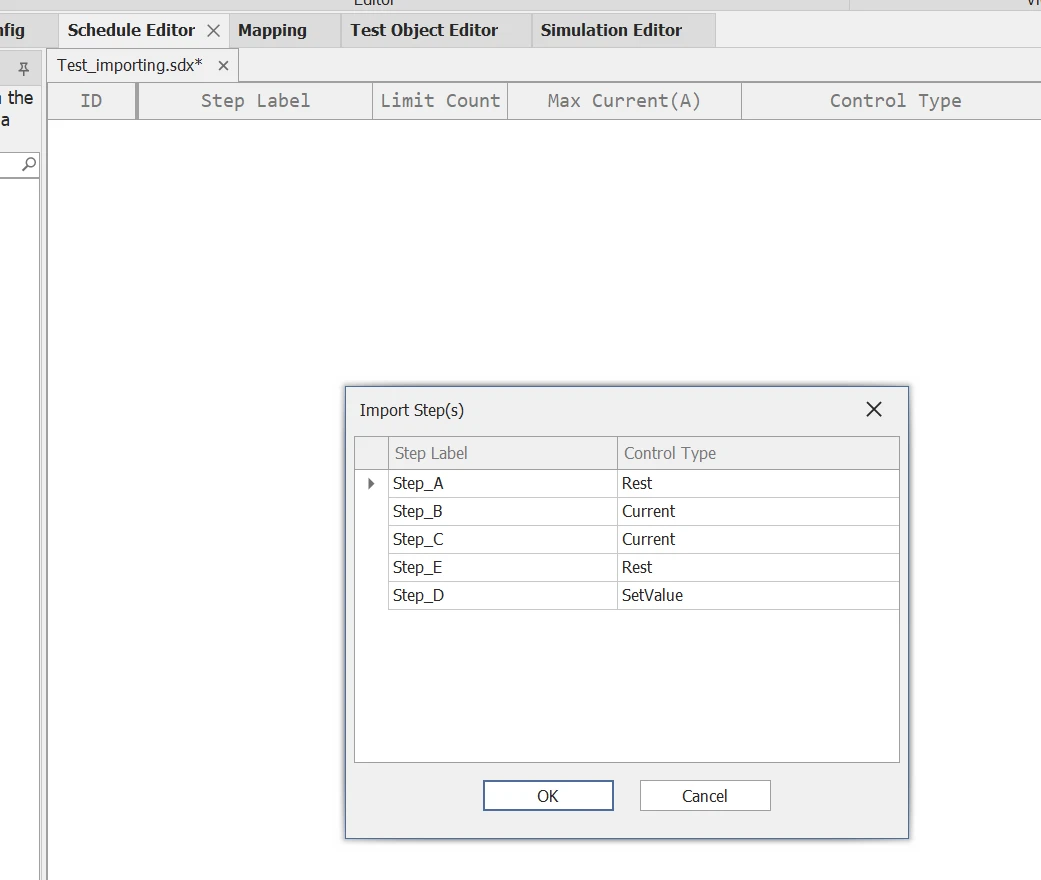
d. Hold the Shift key to select the steps you want to import into the original schedule, then click OK.
e. The imported content appears as follows:

Duplicating content within a schedule:
On the menu bar, click Copy and Paste. A window will pop up.
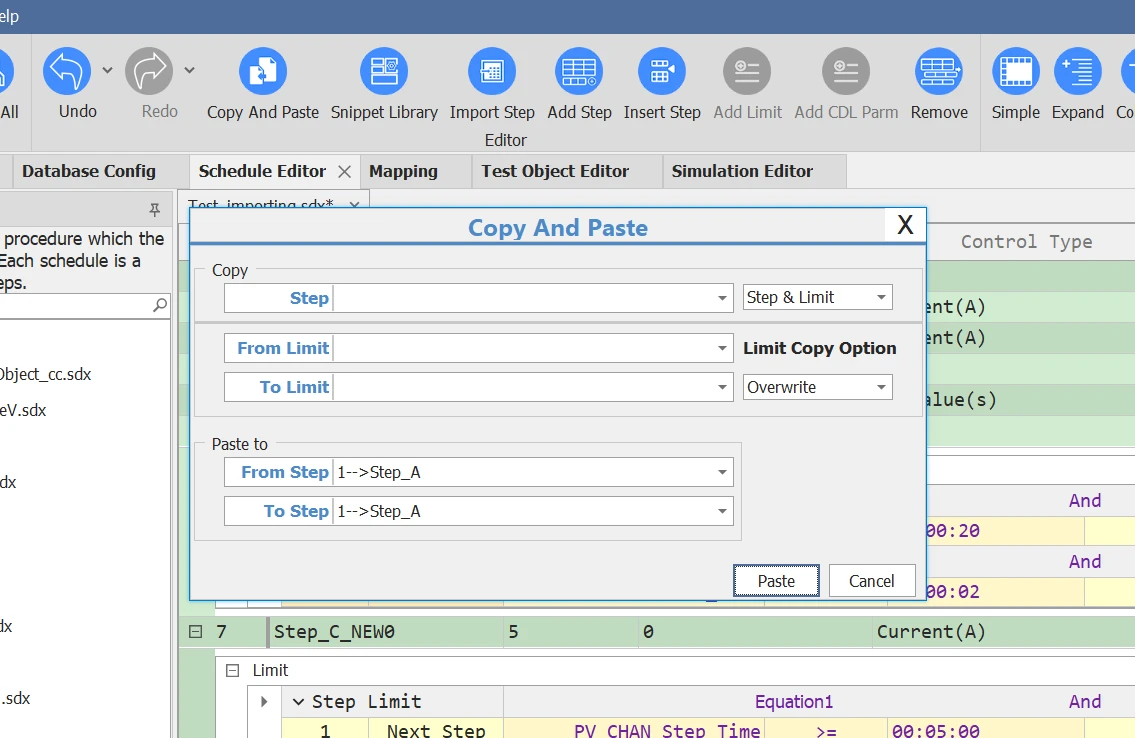
In the “Copy” section, choose the steps you want to copy:
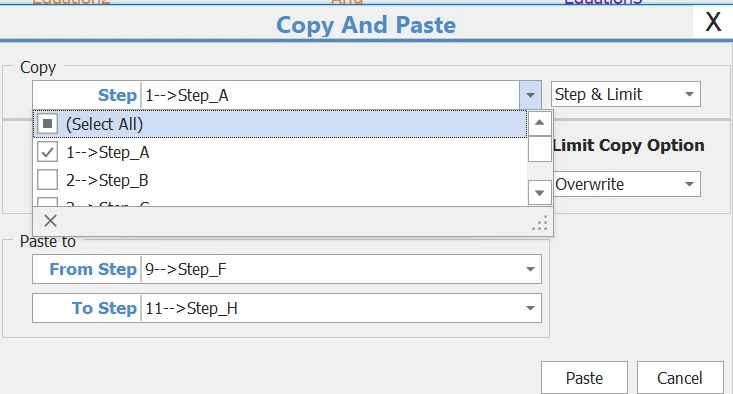
In the “Paste to” section, choose the destination steps you want to copy to:
-
If you choose to copy one step to many steps, that step is copied to all the destination steps.
-
If you choose to copy m steps to n steps in the destination, the steps are copied respectively, one to one. The number of steps copied is the smaller of m and n.
For example, if you tick A, B, C in the Copy section and choose F to H (or 9 to 11) in “Paste to,” then A is copied to F, B to G, and C to H.
If you only choose A and B, then A is copied to F and B to G, while H remains unchanged.
If you choose all of A, B, C but the destination is only F to G, then only A and B are copied to F and G.
Using Sub-Schedule
For more details, refer to this link: Sub-Schedule (Subroutine) Feature | Arbin Instruments

