 한국어
한국어  English
  简体中文
简体中文 




In some situations, a schedule may stop immediately after it starts. This behavior usually occurs when certain safety conditions are not met or when required devices are not properly connected.
The system automatically stops the schedule to prevent unexpected behavior, hardware damage, or unsafe operating conditions.
This article provides common causes and troubleshooting steps to help identify and resolve the issue.
Symptoms
You may encounter one or more of the following symptoms:
-
The schedule starts but stops immediately
-
An unsafe siren starts ringing
-
The system displays a warning or error message.
Possible Causes and Solutions
If you experience these symptoms, review the checklist of possible causes below:
-
Load voltage outside the safety limit in config file.
-
Load voltage lower than the Unreasonable Behavior Check threshold (only in some versions of MITS 8)
-
Load voltage exceeds safety limit in schedule
-
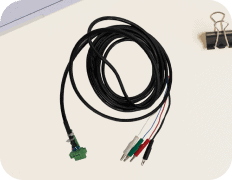
Auxiliary cable disconnected.
-
EIS function enabled but the EIS device is not properly connected
-
UPS function enabled but the UPS is not properly connected
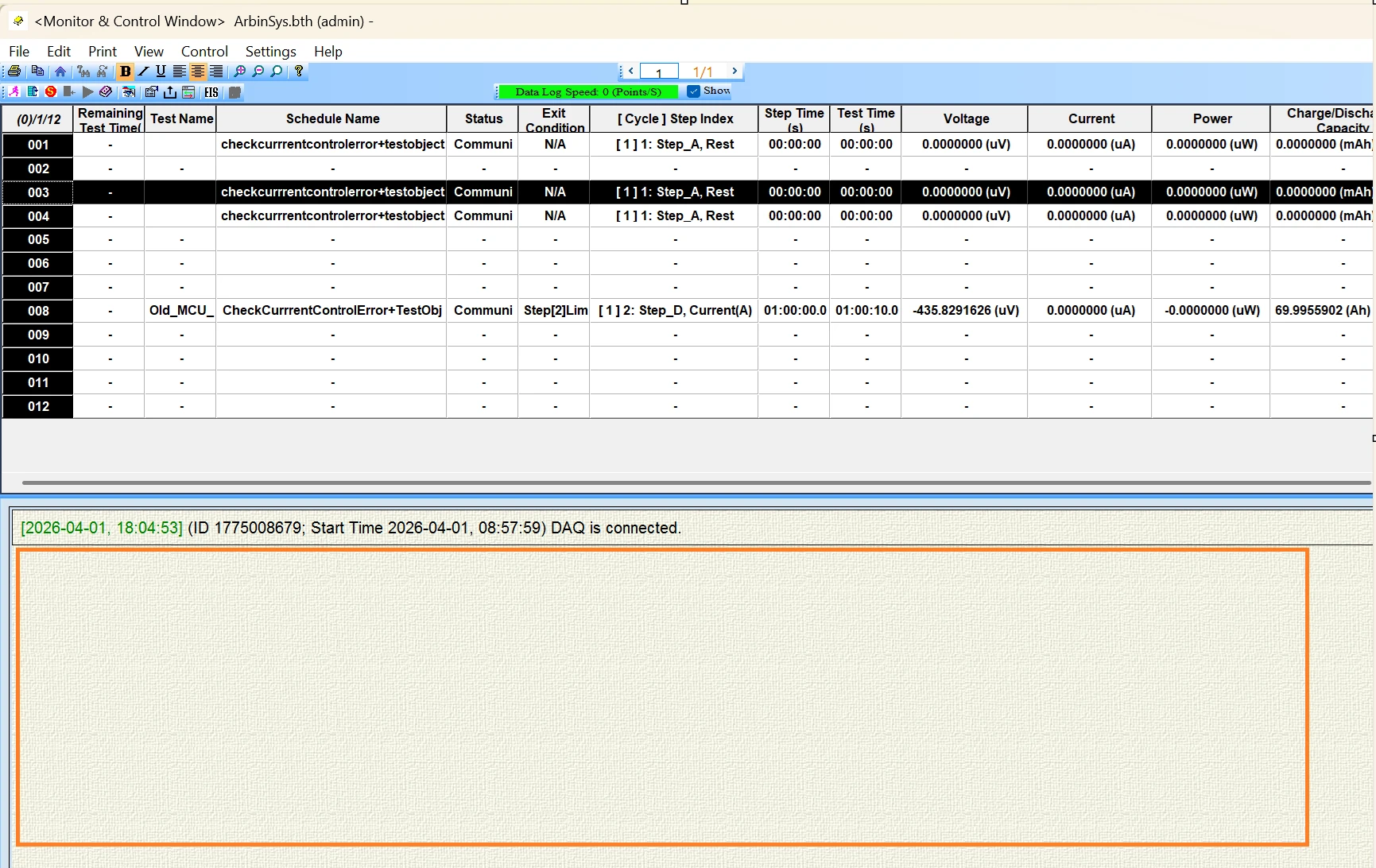
You can find useful information about the error displayed by the system at the bottom of the Monitor and Control Window, as shown in the rectangle in the picture below:
We will detail each possible cause as follows
1. Load voltage outside the safety limit in config file.
설명
The system monitors the load voltage before executing the schedule. If the voltage is outside the configured safety range, the schedule will automatically stop.
How to check
-
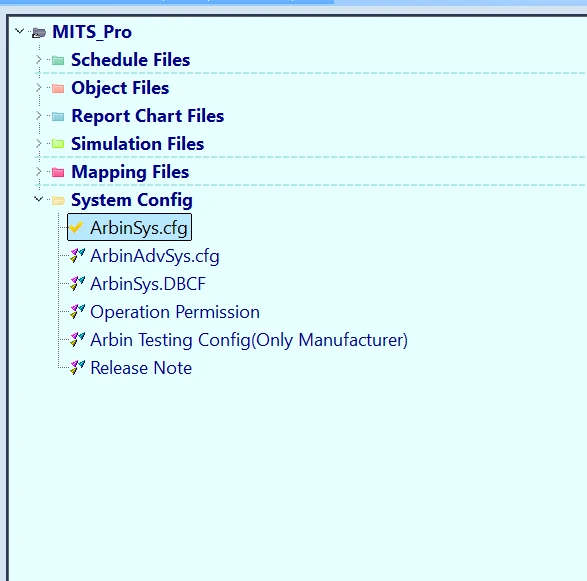
Open the System Config file
-
Locate the Voltage Safety Limit configuration.

-
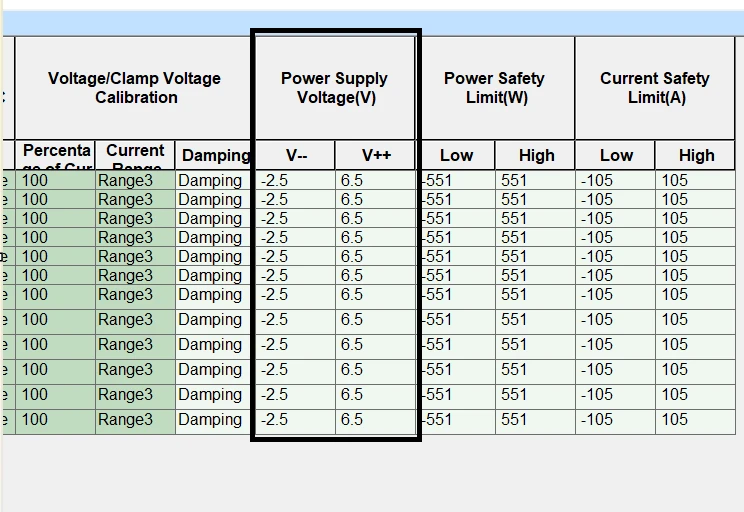
Check the configured minimum and maximum voltage values and compare them with the actual measured load voltage.
In the example above, if your load voltage falls outside (-2.5V, 6.5V), an alarm will be raised.
솔루션
-
Verify all cables and connections. Loosen voltage cable connection may lead to wrong voltage reading.
-
Check if the voltage cables are reversed, meaning the positive cable is connected to the negative electrode and vice versa.
2. Load voltage lower than the Unreasonable Behavior Check threshold
설명
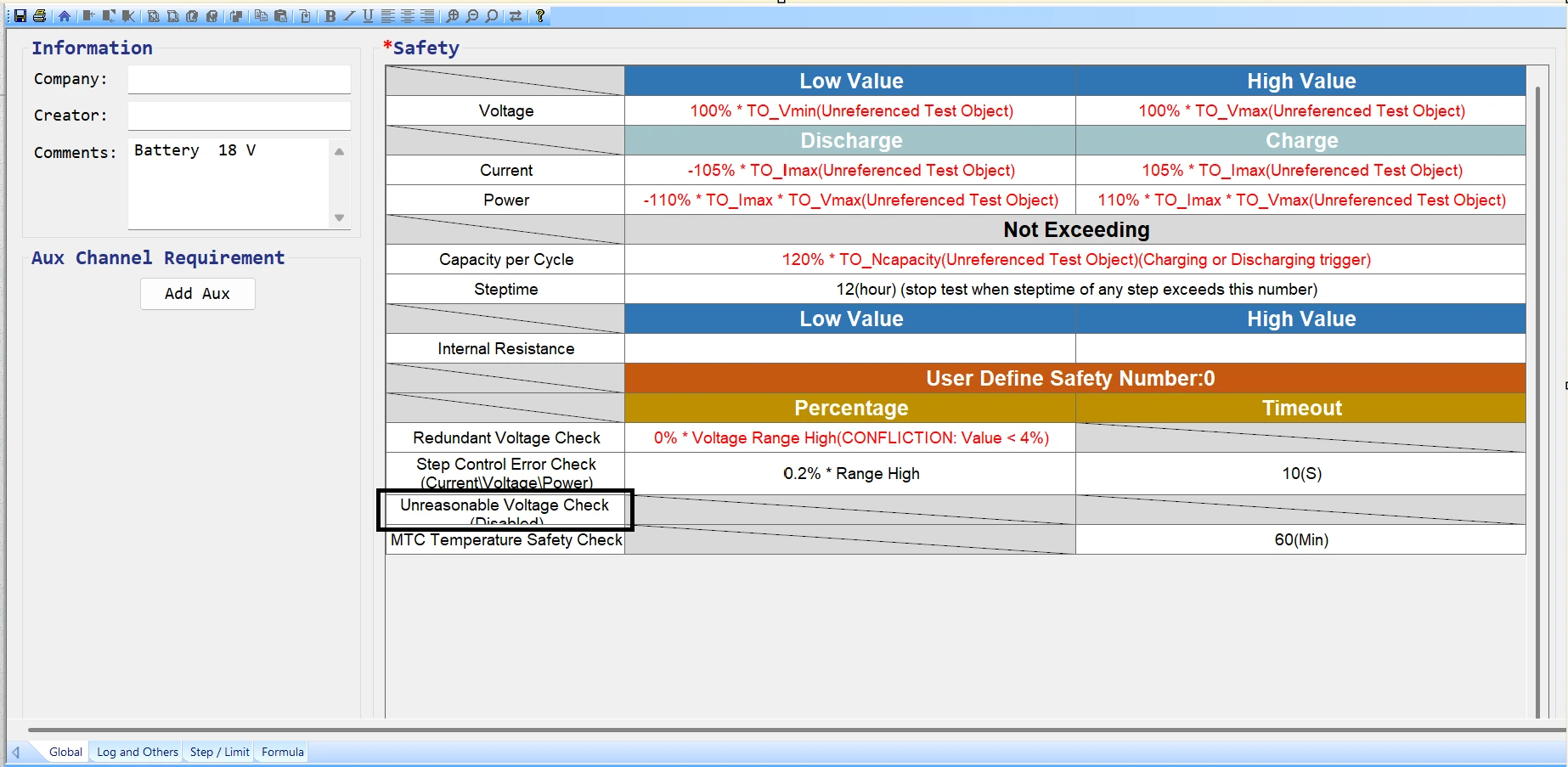
그리고 Unreasonable Behavior Check is designed to detect abnormal operating conditions. If the load voltage is lower than the defined threshold, the system assumes an abnormal condition and stops the schedule.
This issue only appears in some version of MITS 8.
UI Navigation
In the Global tab of the schedule file, go to Safety Settings → Unreasonable Behavior Check
Settings → Safety Settings → Unreasonable Behavior Check
솔루션
-
Increase the load voltage to meet the required threshold.
-
Adjust the threshold value if necessary.
3. Load voltage exceeds safety limit in schedule
설명
The safety limit feature is designed to detect abnormal voltage conditions. If the load voltage is below the configured threshold, the system assumes an abnormal condition and stops the schedule.
How to check
-
Navigate to Safety Settings.
-
Check the minimum and maximum voltage threshold
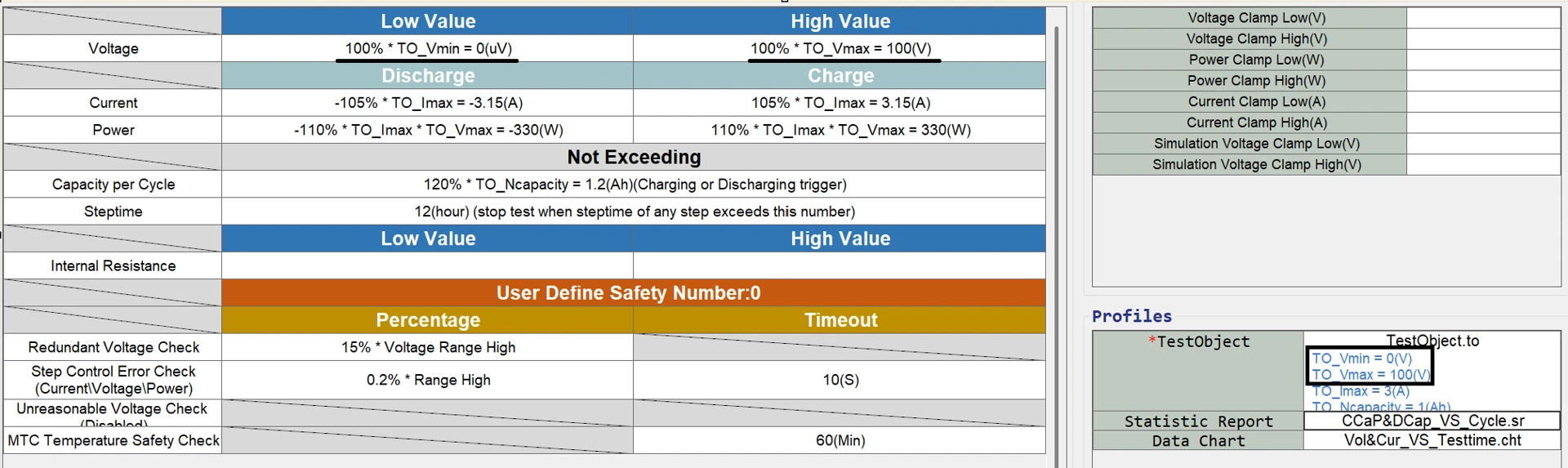
If your test object is a capacitor whose voltage can drop to 0, setting Vmin to 0 V may cause the voltage to fall into an unsafe range when the capacitor is discharged to its minimum value. This is because the machine’s voltage accuracy is 0.02% FSR. On the 5 V range, this corresponds to about 2 mV. As a result, when the actual voltage of the device is truly 0 V, the machine may read -2 mV, which can trigger an unsafe voltage alarm.
솔루션
-
Adjust the voltage limit in the test object: Vmax and Vmin so that it wholy cover the voltage range of the object. For example, if the object’s voltage range is 0-5V, you may need to set Vmin = -0.1 V and Vmax = 5.1 V.
4. Auxiliary cable disconnected.
In this example, the channel’s temperature sensor is disconnected, causing the reading to be -80(C).
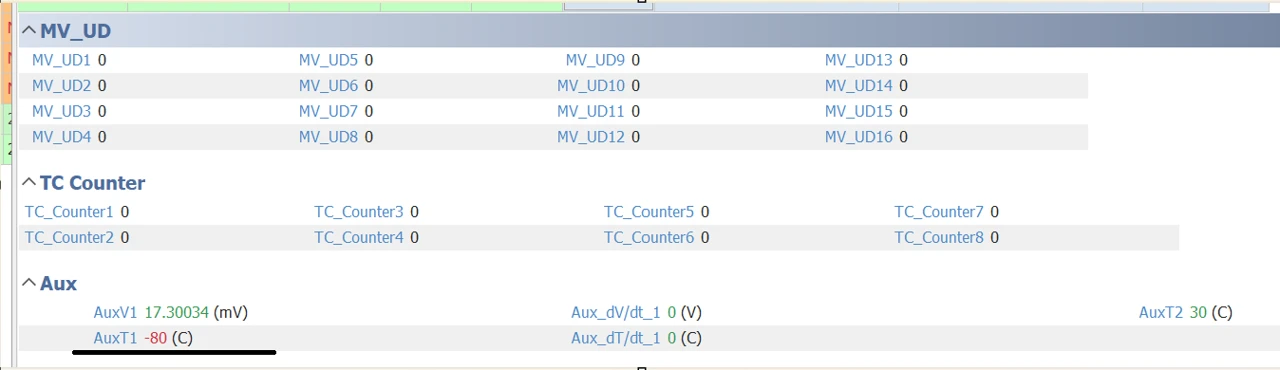
In schedule’s global tab, the Aux Temperature safety range is set to be from 0(C) to 60 (C)
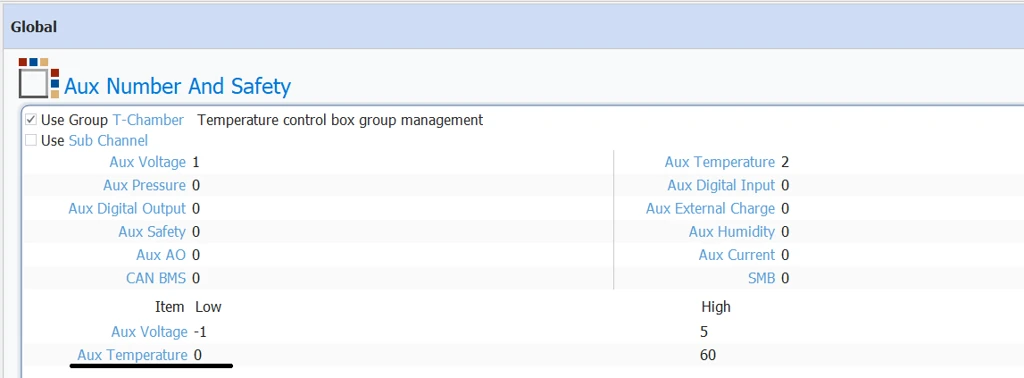
This can cause unsafe alarm and stop the channel right at the beginning.
Solution:
-
Plug the sensor into the channel.
-
If temperature measurement is not required, remove the Auxiliary Temperature mapping from the channel configuration.
-
For systems with built-in 보조 온도, if no sensor is available, you may set the 보조 온도 safety range, as shown in the figure above, to -80°C to 60°C. However, this should be considered a last resort and must be done with caution.
5. EIS function enabled but the EIS device is not properly connected
설명
If the EIS (Electrochemical Impedance Spectroscopy) function is enabled, the system expects an EIS device to be connected. If the device is missing or improperly connected, the schedule cannot start.

Click this EIS symbol to enable EIS function on MITS8

Green on EIS = EIS function is enabled
솔루션
-
Confirm that the EIS device is physically connected and recognized by the computer.
-
Restart the MITS software, and restart the computer as well if the device is still not recognized.
-
Disable the EIS function if it is not required (in MITS10 EIS only applicable in MITS 8nnot be disabled.)
6. UPS function enabled but the UPS is not properly connected
설명
When the UPS (Uninterruptible Power Supply) function is enabled, the system requires a valid UPS connection to ensure safe operation during power interruptions.
If the UPS is not connected or not detected, the schedule may stop during initialization.
솔루션
-
Verify that the UPS is powered on
-
Check the communication cable between the UPS and the system
If you need further help, please feel free to reach out to us: https://www.arbin.com/contact-us.html

