 한국어
한국어  English
  简体中文
简体中文 
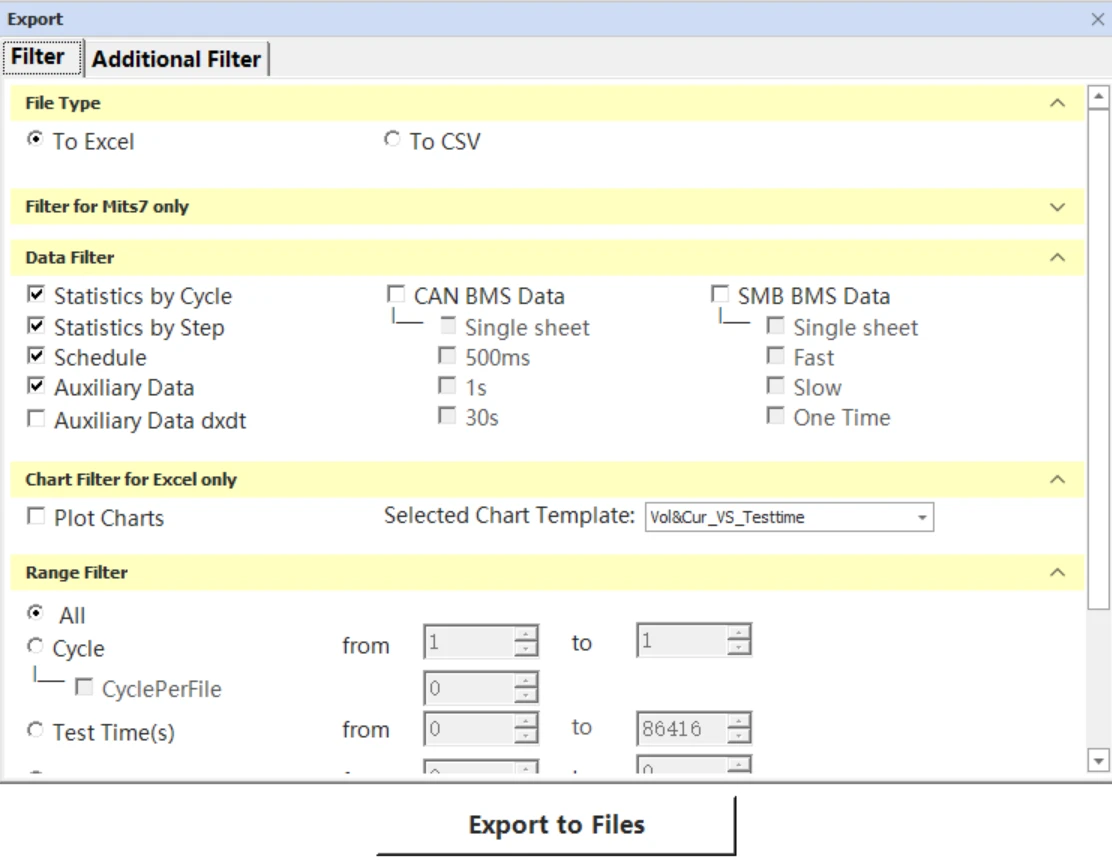
Short answer: Every export includes the basic time-series data for the DUT: current, voltage, power, capacity and energy at each logged point. You can add more using the checkboxes in the Export window. These include cycle and step statistics (with Coulombic efficiency), the schedule, auxiliary data such as temperature, BMS data, extended variables such as internal resistance and dQ/dV, counters and user-defined variables.
What is always included in the exported data?
The channel data sheet (for example, Channel-1_1) has one row for each logged data point. It contains these columns:
Data Point, Date Time, Test Time (s), Step Time (s), Cycle Index, Step Index, Current (A), Voltage (V), Power (W), Charge Capacity (Ah), Discharge Capacity (Ah), Charge Energy (Wh), Discharge Energy (Wh), Capacity (Ah) and mAh/g.
Other columns appear only if you selected them, such as ACR, dV/dt, Internal Resistance and Aux_Temperature.

Which sheets will I see in the Excel file?
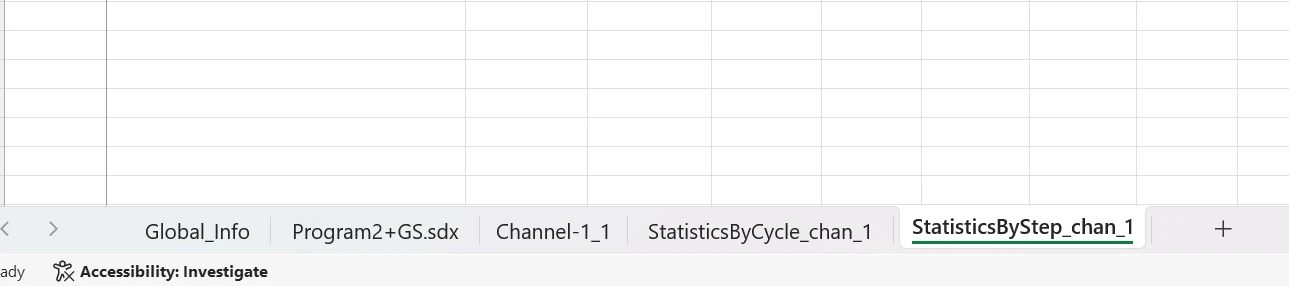
Depending on your selections, the workbook can contain:
|
Sheet |
Contents |
Enabled by |
|---|---|---|
|
Global_Info |
General information about the test |
Always included |
|
[Schedule name].sdx (e.g. Program2+GS.sdx) |
The test schedule that was run |
일정 |
|
Channel-X_Y |
Point-by-point raw data |
Always included |
|
StatisticsByCycle_chan_X |
One summary row per cycle |
Statistics by Cycle |
|
StatisticsByStep_chan_X |
One summary row per step |
Statistics by Step |
Is Coulombic efficiency included?
Yes. Coulombic Efficiency (%) is a column in the statistics sheets. To include it, tick Statistics by Cycle and/or Statistics by Step under Data Filter on the Filter tab.
Can I export statistics data?
Yes. Statistics by Cycle adds a sheet with one row per cycle, and Statistics by Step adds a sheet with one row per step. Each row shows the test time, step time, current, voltage, capacities, energies, Coulombic efficiency and any extended variables or auxiliary channels you selected for that cycle or step.
Can EIS data be exported?
Yes. If the test contains EIS data, an EIS export section appears in Data Watcher so you can include it in the export.
How do I include temperature or other auxiliary channels?
Tick Auxiliary Data under Data Filter. Each auxiliary channel is added as its own column, for example Aux_Temperature_1 (C) 그리고 Aux_Temperature_2 (C). Tick Auxiliary Data dxdt to also export the rate of change of the auxiliary channels.
Can I export BMS data?
Yes. The Data Filter section has two options:
-
CAN BMS 데이터, which you can export to a single sheet and at an interval of 500 ms, 1 s or 30 s.
-
SMB BMS 데이터, which you can export to a single sheet and with the Fast, Slow or One Time options.
What extended variables are available?
On the Additional Filter tab, under Extended Variable, you can add ACR, Internal Resistance, dV/dt, dQ/dV, dV/dQ, DNLC 그리고 DNC. Each one becomes a column in the data and statistics sheets.
What else can be added?
그리고 Additional Filter tab also has these options:
-
TC_Counter1 to TC_Counter8
-
MV_UD1 to MV_UD16, the user-defined meta variables (not supported on MITS7)
-
Other Info: Data Flags, Debug and UDS
Excel or CSV, which should I choose?
Choose the format under File Type. To Excel produces one workbook with separate sheets and is the only format that supports charts. To add charts, tick Plot Charts under Chart Filter for Excel only and pick a template, for example Vol&Cur_VS_Testtime. To CSV produces plain-text files.
Can I export only part of a test?
Yes. Use the Range Filter to choose what to export:
-
모두 exports the whole test.
-
Cycle exports a range of cycles. With CyclePerFile, the export is split into separate files by cycle.
-
Test Time (s) exports a time window.
How do I export?
-
Open the Export window.
-
On the Filter tab, choose the file type, the data you want, any chart template and the range.
-
On the Additional Filter tab, select any extended variables, counters or other info.
-
클릭 Export to Files.

